
Known issue: sharing UCLA Box folders
I am unable to share folders I created within my UCLA Box account even though my invitations were successfully sent and accepted by those with emails I entered from the UCLA Box invitation.
I am unable to share folders I created within my UCLA Box account even though my invitations were successfully sent and accepted by those with emails I entered from the UCLA Box invitation.
In order for you to share folders with others on UCLA Box through email invitations, the invitation emails you entered must be the primary or secondary emails of the users you invited. The default primary emails used to invite are that same emails listed on the UCLA Campus Directory for users. Secondary emails or aliases can be added by users after they have logged onto their UCLA Box accounts.
How do I add multiple emails to my UCLA Box account so that these emails can be used by others to invite me to access their shared folders?
- Go to the Account tab in your Account Settings.
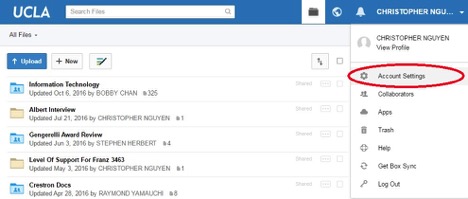
- Click the Add more emails link under the Login and Email Addresses section.
- Enter your new email address in the field and click the Save button.
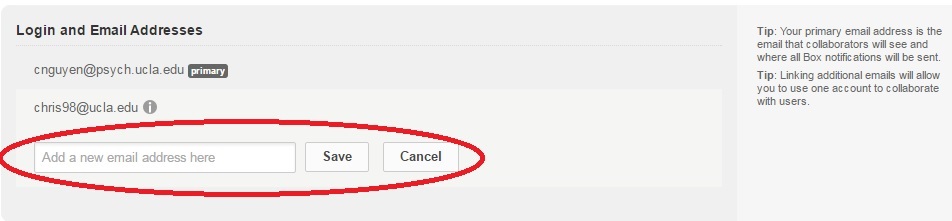
An email verification will be sent to the address you entered. Click the verification link in the email to confirm and add the alternate email to your account.
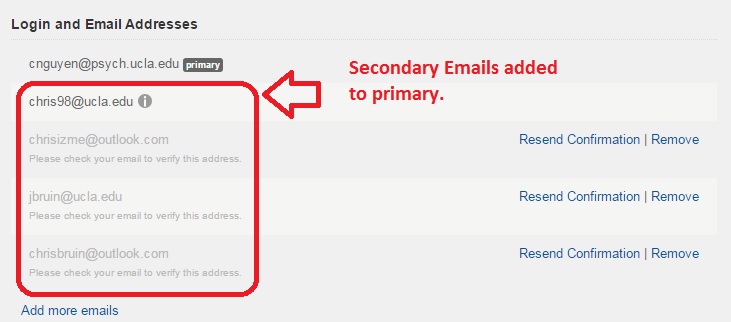
To remove an address, simply click on the Remove link.