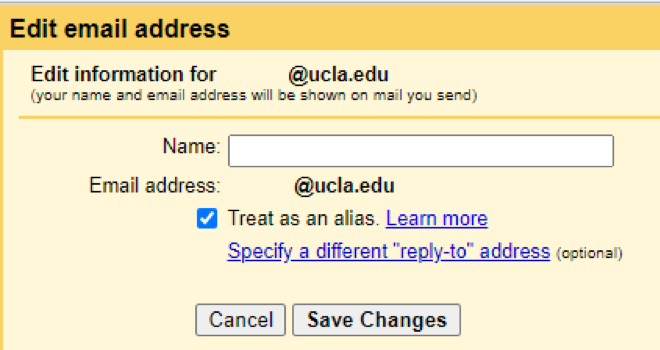
Help with different UCLA email accounts.
- Your @bkarneydu email address is an alias which forwards to another email, most likely to your @g.ucla.edu address.
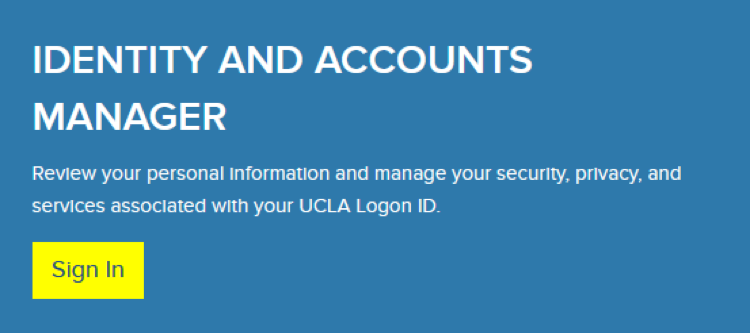
- To verify forwarding login to the UCLA Identity and Accounts Manager
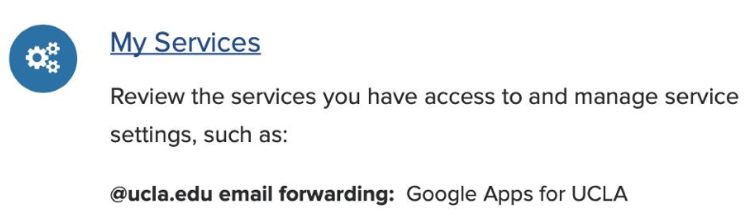
- Go to My Services.
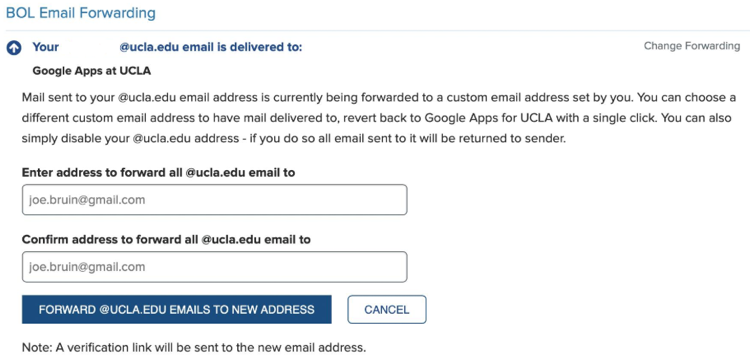
- Under BOL Email Forwarding, you can see where the emails sent to your @ucla.edu are forwarded to. You can set this forward according to your preference.
Your @g.ucla.edu address is a UCLA Google Apps for Education account which includes Gmail, Google Calendar, Google Drive, Google Docs, and more. Google Apps for Education is available to employees, students, alumni, and retirees. For more information, please see Google Apps for UCLA Eligibility and Activation.
An @psych.ucla.edu email address is (optionally) available to Psychology faculty, staff, grad students, and other members of the Psychology department. Psychology departmental email, is part of the Microsoft Office 365 (O365) suite of collaboration tools. Psychology department email is supported by the Enterprise Messaging group within campus IT Services. Psychology email addresses come with 50GB of email storage and 1TB of Microsoft OneDrive cloud storage.
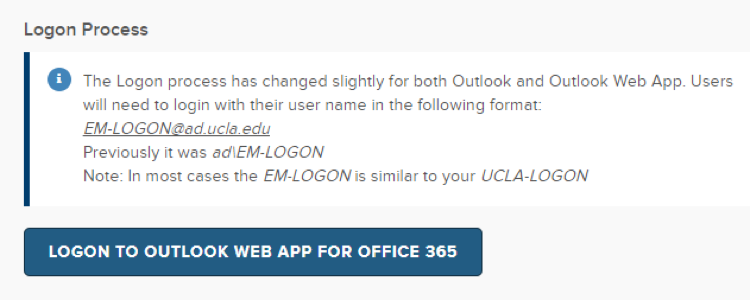
- Logon to the Outlook Web App for Office 365
- Select Outlook on the left-hand side
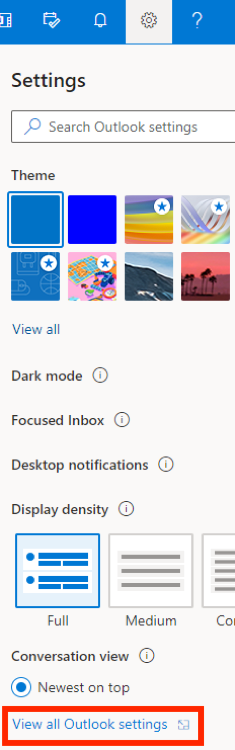
- Select Settings > View All Outlook Settings
- Go to Mail > Forwarding > Enable Forwarding > @g.ucla.edu
Select Keep a copy of forwarded messages to retain a backup on your O365 account.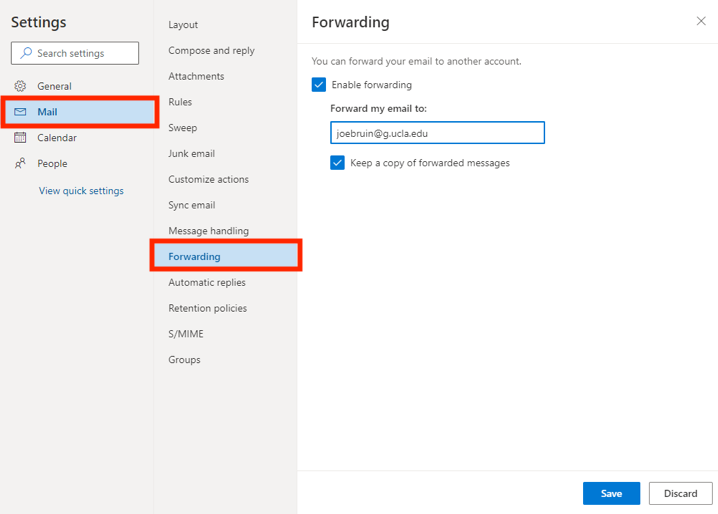
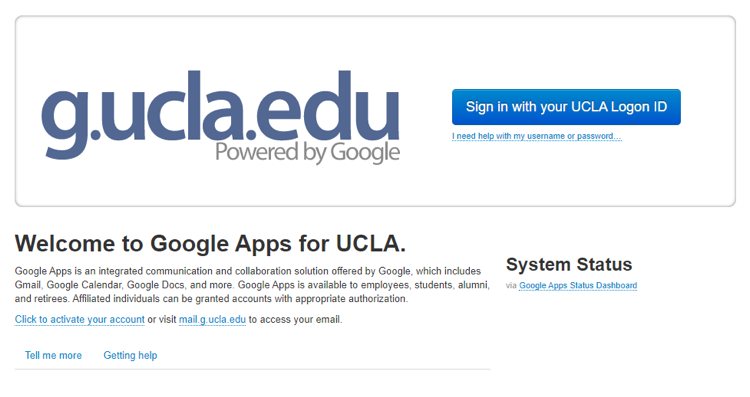
- Logon to your g.ucla.edu
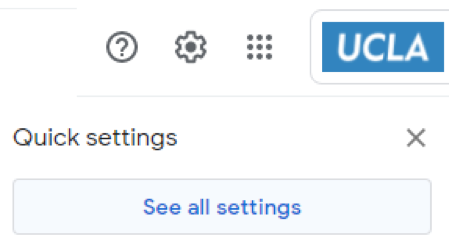
- Settings > See all settings
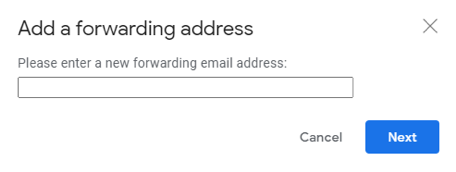
- Select Forwarding and POP/IMAP, Add a forwarding address
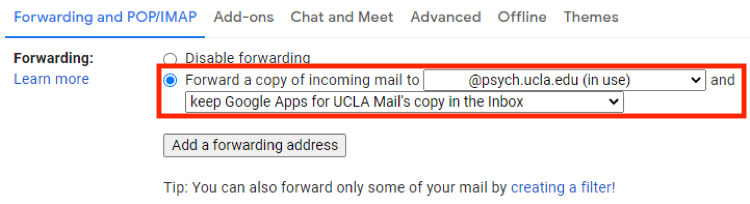
- Select Forward a copy of incoming mail to your@psych.ucla.edu and keep Google Apps for UCLA Mail’s copy in the inbox
- Logon to your g.ucla.edu
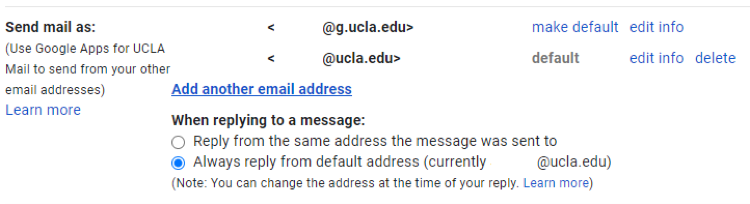
- Settings > Accounts and Import > Send mail as (@ucla.edu)
- Logon to your g.ucla.edu
- Settings > Accounts and Import > Edit Info
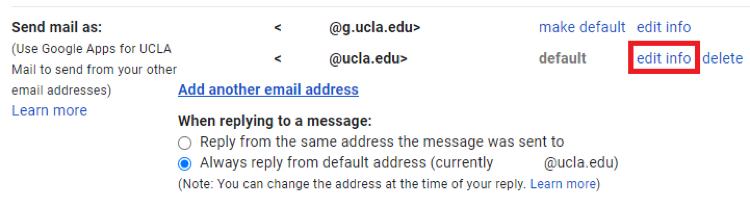
- Modify your Name